
Your Mac wants to sleep. Espresso tells it not to. One tap starts a countdown — the border ring drains as time passes. Tap again to stop, double-tap to add an hour, hold to reset. Powered by caffeinate, a tool built into macOS since 10.8. No permissions, no background services, no subscription.
Three modes
Countdown
Set a duration from 30 minutes to 12 hours. The animated border ring drains in real time. Plays a sound when it expires naturally.
Process watch
Pick an app — Espresso stays awake until it quits. Supports any installed app via a file picker, plus a curated list: Claude Code, Codex, Cursor, VS Code, OBS, HandBrake, DaVinci Resolve, Steam.
AI integration
Starts automatically when Claude Code or Codex begin a task. Stops when they finish. Claude Code hooks installed with one click — no manual config.
What it does
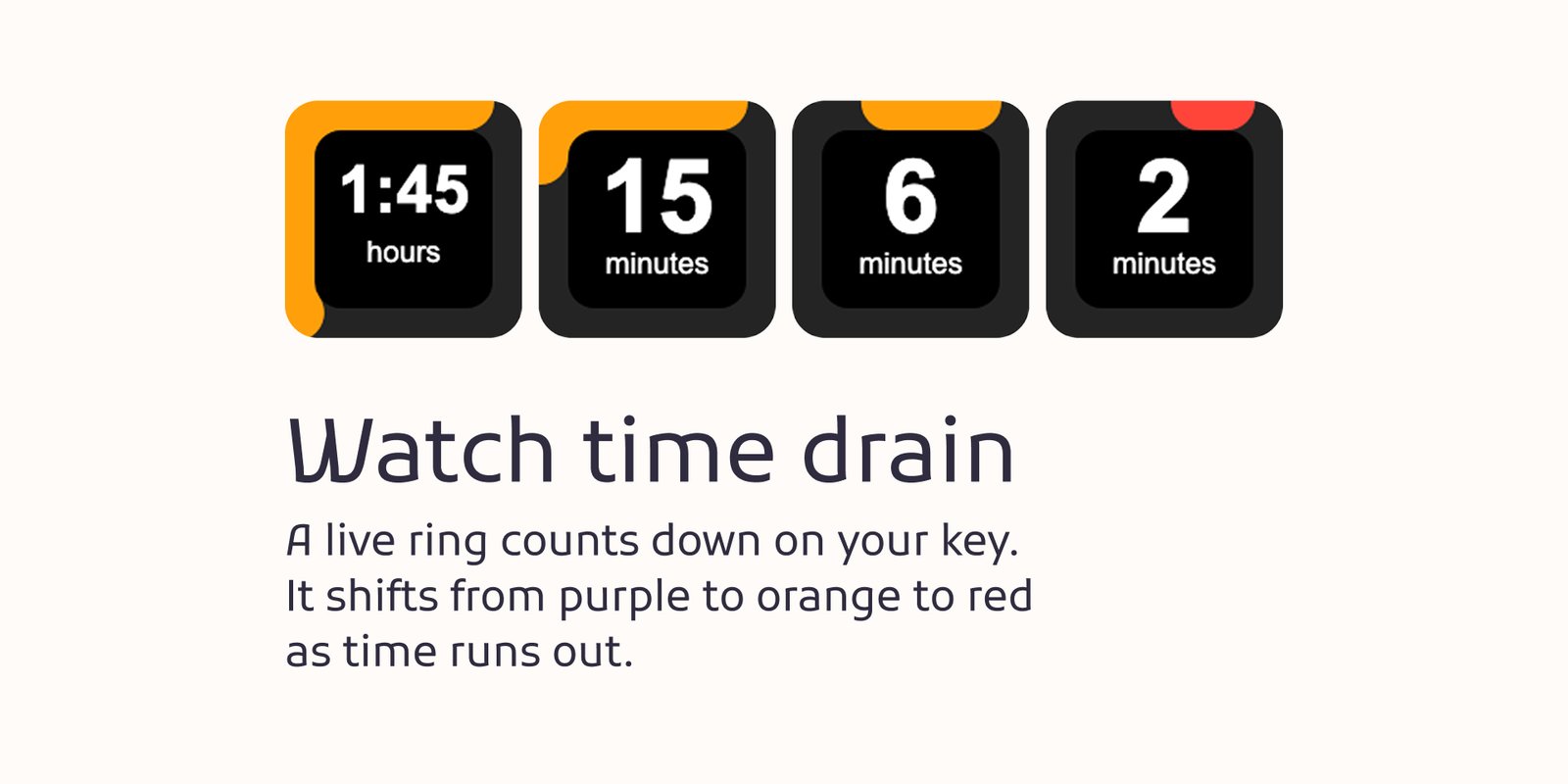
- Animated border ring — a circular arc sweeps the tile border as time passes. Accent color shifts from your chosen color → orange below 50% → red below 10% so you always know how close you are to expiry at a glance.
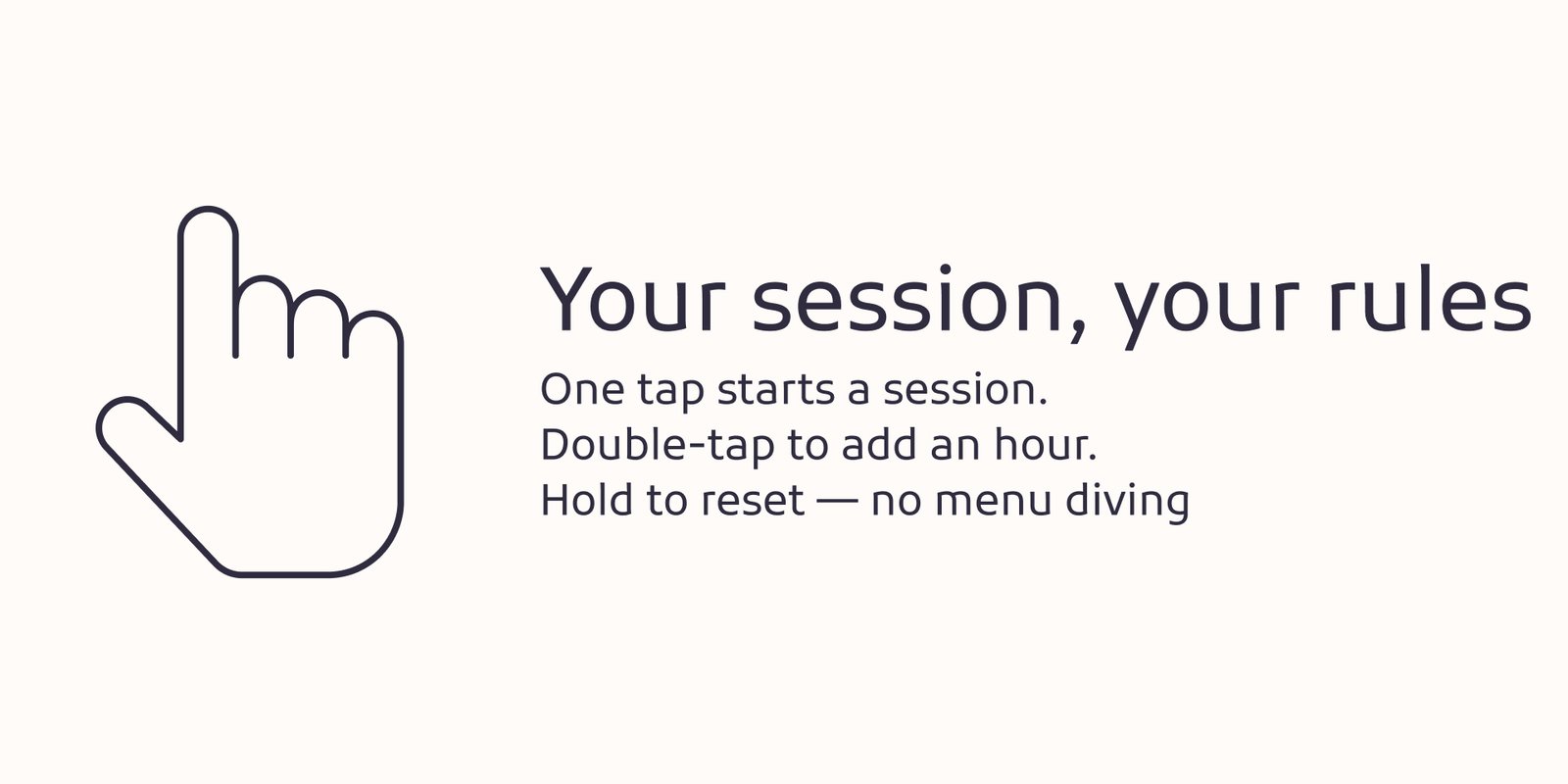
- Gestures with rewind animation — tap to stop (stays idle), double-tap to add 1 hour, hold 2s to reset to the configured duration. Each gesture plays a smooth 2-second rewind animation before settling into its final state.
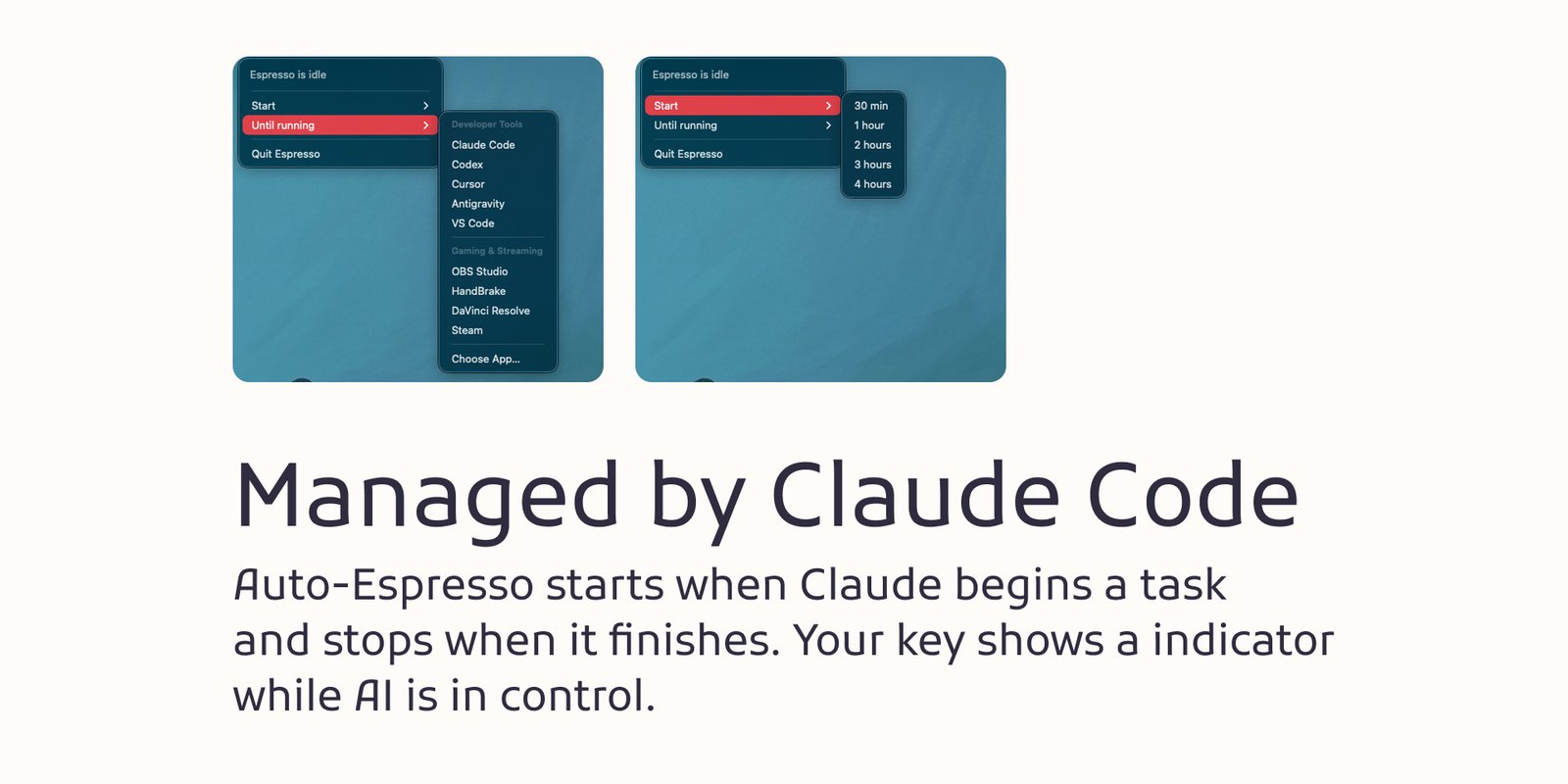
- Until running — any app — choose from a curated list (Claude Code, Codex, Cursor, Antigravity, VS Code, OBS Studio, HandBrake, DaVinci Resolve, Steam) or use "Choose App…" to pick any installed app from your Applications folder.
- Menu bar integration — an optional status item shows remaining time, a mini progress bar, and Start / Add time / Stop controls without touching the Stream Deck.
- Cursor nudge — moves the cursor 1px every few minutes during active sessions, resetting the screensaver idle timer. Prevents Slack, Zoom, and Teams from marking you as away. Requires no Accessibility permissions.
- Session persistence — the end time is stored in Stream Deck settings. If Stream Deck restarts mid-session, the countdown resumes exactly where it left off.
- Kill competing tools — optionally terminates Amphetamine, Lungo, Caffeinated, and other keep-awake apps when a session starts so they don't conflict.
- Sound on natural expiry — plays a notification sound when the timer runs out by itself. Suppressed if you stop manually.
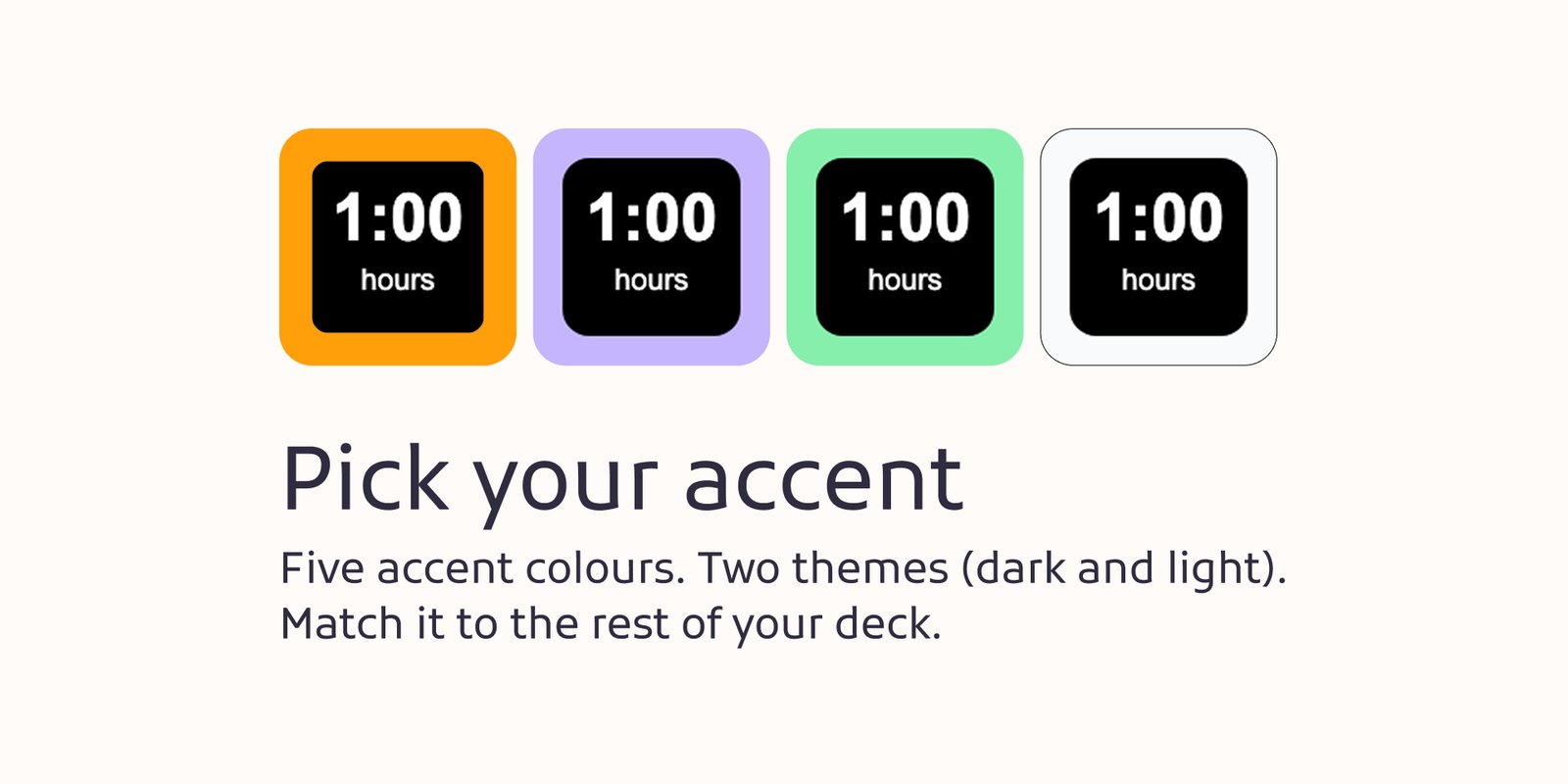
- Five accent colors and two themes — Purple, Sage, Blue, White, Grey. Dark and Light backgrounds. Preview updates live in the Property Inspector.
Gestures
| Gesture | While active | While idle |
|---|---|---|
| Tap | Stop → 2s rewind → stay idle | Start at configured duration |
| Double tap | Add 1 hour → 2s rewind → resume | Start at configured + 1 hour |
| Hold 2s | Reset to configured duration → 2s rewind → resume | Start at configured duration |
Getting set up
- Install Espresso from the Elgato Marketplace and drag the tile to a key.
- Open the Property Inspector. Choose your accent color, theme, and default duration.
- Under Behavior, decide whether to show the menu bar item and whether to nudge the cursor during sessions.
- Tap the key to start your first session. The border ring begins draining immediately.
- Optional — AI integration: enable "Auto-Espresso with Claude Code & Codex" in the Property Inspector, then click "Install hooks automatically". Espresso will start and stop with your AI sessions from that point on.
- Optional — Until running: use the menu bar's "Until running" submenu to pick an app, or choose "Choose App…" to browse for any installed app. Espresso will run caffeinate until that process exits.
Good to know
My Mac still goes to sleep with Espresso running
Make sure "Keep display awake" is enabled in the Session section of the Property Inspector — without it, caffeinate only prevents system sleep, not display sleep. On battery power, your Energy Saver settings may still override caffeinate for certain assertion types. For reliable results, plug in to power or disable "Low Power Mode".
The screensaver still activates
caffeinate prevents sleep but does not prevent the screensaver (they are controlled separately on macOS). Enable "Move cursor to prevent screensaver" in the Behavior section — this nudges the cursor 1px on an interval, which resets the screensaver idle timer without requiring Accessibility permissions.
AI integration: Claude Code session didn't auto-start Espresso
Check that the hooks are installed — open the Property Inspector, go to AI Integration, and click "Install hooks automatically". If the status shows an error, use the "Manual install" section to add the entries to ~/.claude/settings.json by hand. Also verify that a Claude Code session is actually running (Espresso uses the PreToolUse hook, so it activates when a tool call is made, not just when the CLI opens).
Until running: the session doesn't start for my app
Espresso uses pgrep -x to find the process by its exact binary name. If the app isn't starting, it usually means the process name doesn't match. Use Activity Monitor to find the exact process name, then use "Choose App…" in the menu bar — Espresso reads the binary name from the app's Info.plist automatically.
Can I have multiple Espresso tiles on different keys?
Yes — Espresso is a singleton action, meaning all Espresso tiles on your deck share the same session state. Adding multiple tiles gives you more physical buttons to tap, not multiple independent sessions.
Does it work with Stream Deck +, XL, and Mini?
Yes. Espresso works with any Stream Deck hardware. The tile renders as a 144×144 SVG which scales correctly across all key sizes. The menu bar integration is completely independent of which hardware you use.
One-time purchase, no subscription. Part of the Microdash family.